NEXT Risk Protect: Advanced Visibility into Fraud Screening
NEXT Risk Protect shows merchants why checkout attempts get blocked for fraud risk and lets them set their own risk tolerance
Introducing NEXT Risk Protect, our real-time checkout screening built directly into Next Commerce’s payment infrastructure.
On NEXT, every checkout is scored from 0 to 100 using MaxMind minFraud signals combined with NEXT’s own transaction data, before payment is ever taken. Checkout attempts that score above your risk tolerance are declined automatically and no order is created.
Now, these per-checkout risk metrics are available to view directly in the dashboard, giving merchants more data from which to make fraud protection decisions.
See Every Flagged Checkout in One Place
Head to Payments > Risk, and you’ll find a live view of everything Risk Protect has screened, shown over the last 30 days by default: total checkout attempts screened, how many were blocked, your block rate, and your average risk score. Below that sits a running table of every flagged checkout attempt, complete with the customer’s email, risk score, amount, card, and timestamp — searchable if you just need to check one customer.
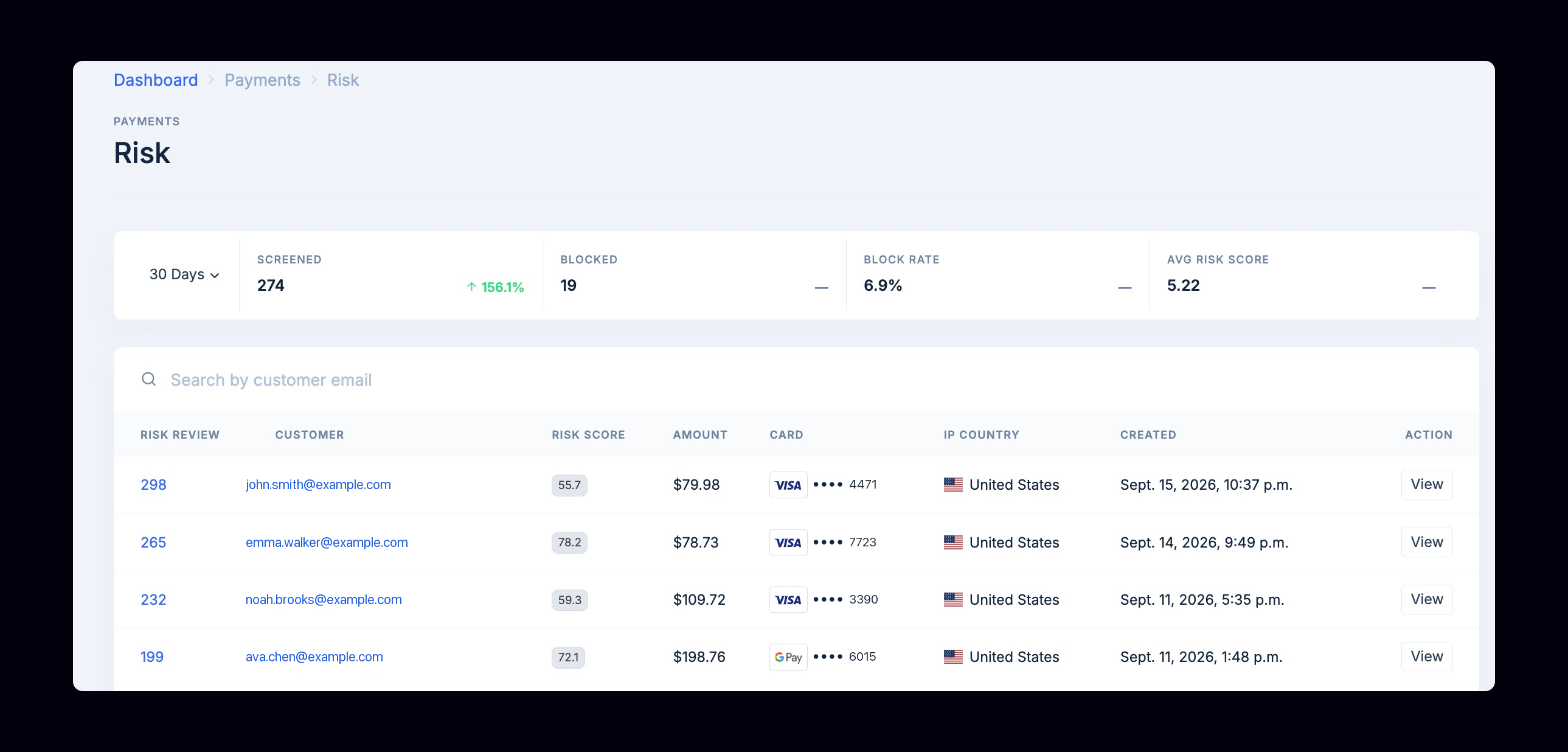 Every screened and blocked checkout attempt, in one view.
At a glance, you can tell whether last week’s spike in blocked checkout attempts was a coordinated attack or just noise, then drill into any individual case in seconds.
See Exactly Why a Checkout Was Blocked
If you’re digging into why a particular checkout attempt was declined, select View on that row to see the full breakdown.
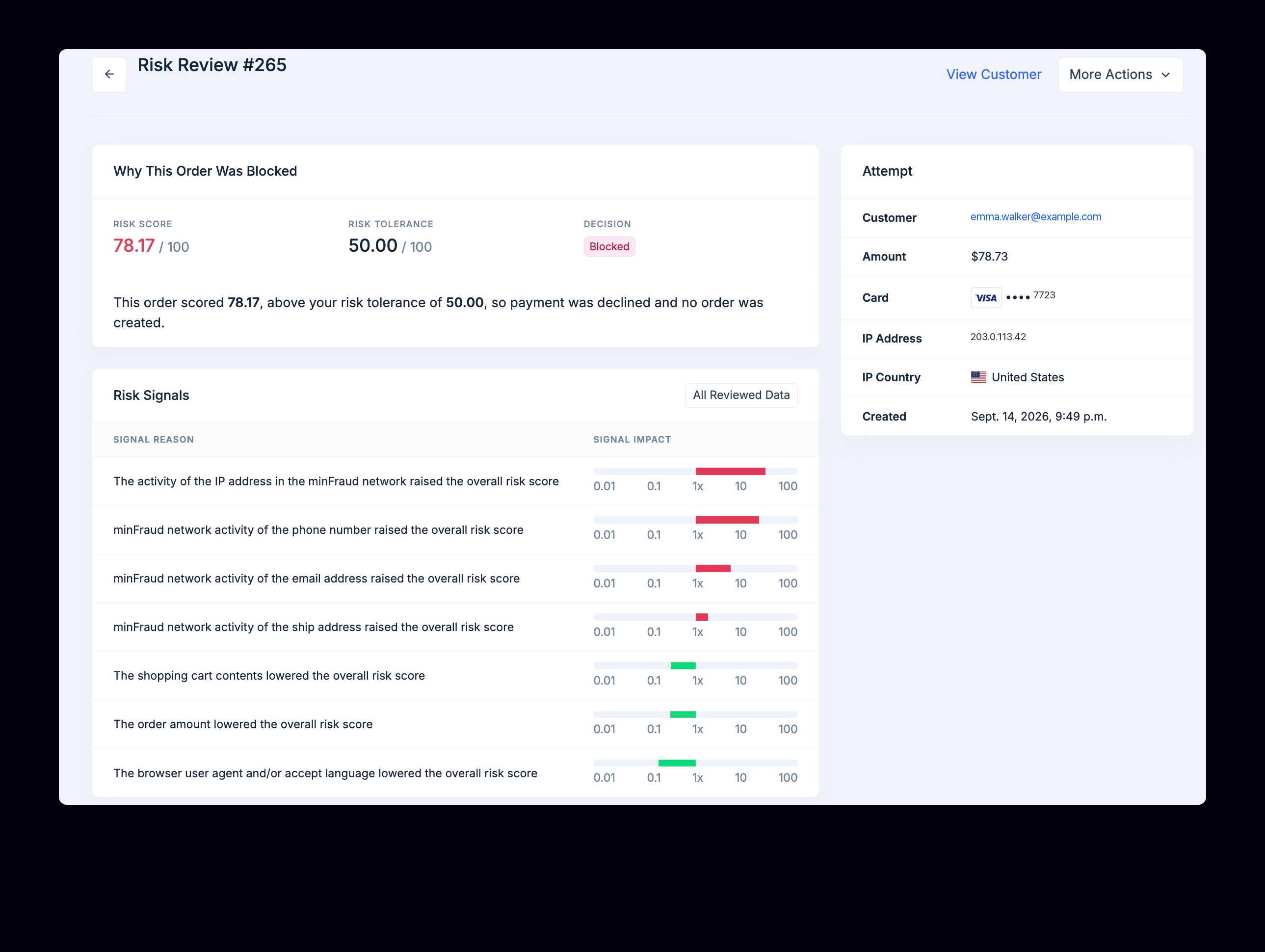 A full breakdown of why a checkout was blocked, signal by signal.
Each signal that pushed the score up or down is broken out individually: network activity on the IP address, phone number, email, and shipping address, along with cart contents, order amount, and browser and language signals — each with a bar showing how much weight it carried. An All Reviewed Data view shows the complete signal set behind the score.
If a declined customer reaches out and you determine they’re legitimate, you can whitelist their customer profile directly from this page.
How to Set Your Risk Tolerance
NEXT Risk Protect works on a risk tolerance that you set. Open Settings > Payments and you’ll find the Risk Tolerance slider, running from 10 (strictest) to 90 (most permissive). NEXT recommends starting at 50.
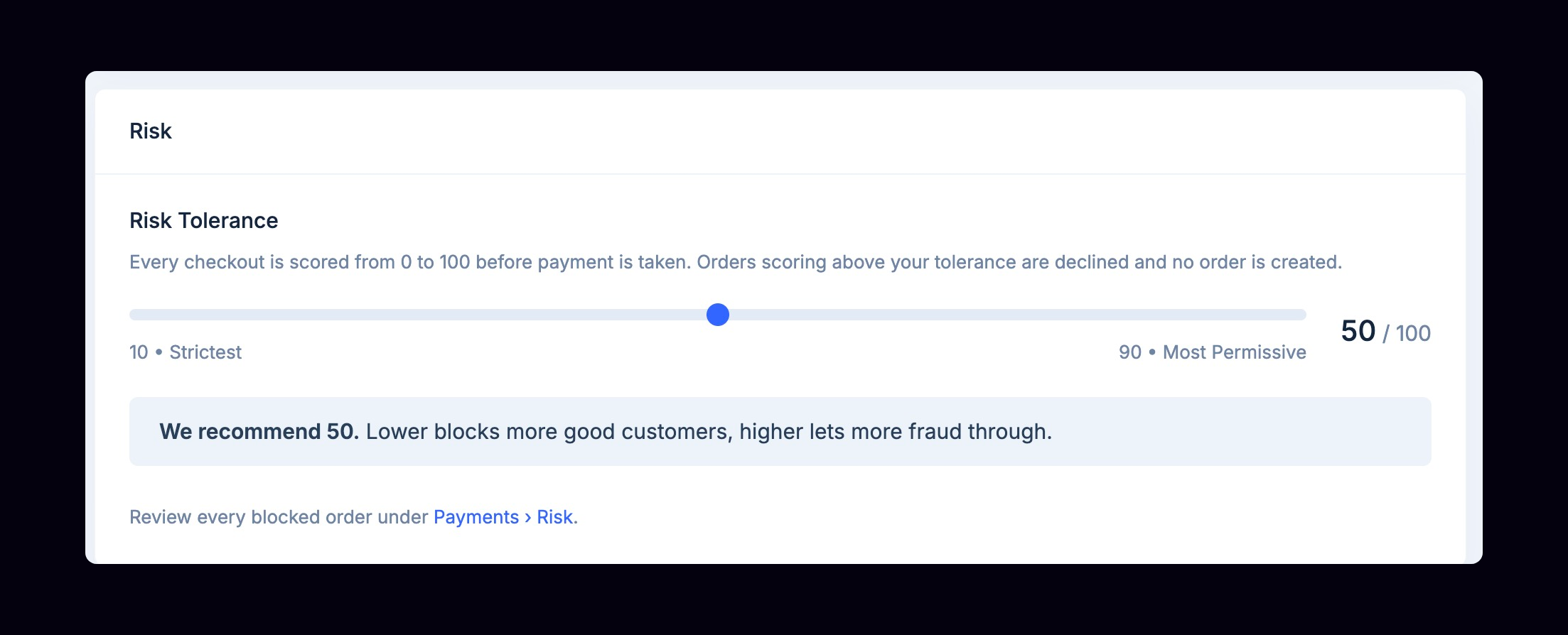 Set your risk tolerance once, and every checkout gets measured against it.
Move it lower and you’ll catch more fraud, but at the cost of turning away a few good customers along the way. Move it higher and more checkout attempts get through — perhaps with fraud included.
There’s no universal right answer here; it depends on your margins, your vertical, and how much manual review you’re willing to take on downstream. Whatever you land on, you can change it anytime, and every blocked checkout attempt stays reviewable under Payments > Risk, so you can see the tradeoff play out in real numbers instead of theory.
For the full mechanics, see the Risk Screening guide. Fraud protection on NEXT also includes block lists for blocking known bad actors outright.
Start Using NEXT Risk Protect
Risk Protect is live in every store, and declined orders are viewable under Payments > Risk. If you haven’t set your tolerance intentionally you can find the slider bar in Settings > Payments.
Risk Protect screens every checkout the same way, every time, and lets you tune the tolerance as attack patterns shift, without adding headcount to your fraud queue. For merchants running high order volume, that consistency is invaluable.